Arch Getting Started & Essentials
Essentials
Messaging
Signal
Encrypted messages, one of the best as of 2025
sudo pacman -S signal-desktop
Telegram
Unencrypted message app, use for public stuff only
sudo pacman -S telegram-desktop
System Utils
Ark
Unzipping utility, used across file browsers such as, thunar
sudo pacman -S ark
Remote & Gaming Clients
Moonlight
Good To Have Or Change
Setting Default Browser
- Install
xdg-utils - Run the following to get the current default browser
xdg-settings get default-browserTLDR Commands
    #Print the default web browser:
    xdg-settings get default-web-browser

    #Set the default web browser to Firefox:
    xdg-settings set default-web-browser firefox.desktop

    #Set the default mail URL scheme handler to Evolution:
    xdg-settings set default-url-scheme-handler mailto evolution.desktop

    #Set the default PDF document viewer:
    xdg-settings set pdf-viewer.desktop

    #Display help:
    xdg-settings --help
Encryption
- [Cryptomator]
- Veracrypt - Encryiption utility
sudo pacman -S veracrypt
- Cryptomator - Encryption tool
yay cryptomatorpick the nonbinversion
Remote Tools
- Remmina - VNC remote connection utility
sudo pacman -S remmina freerdpfreerdp is needed to be able to connect to windows server
- Moonlight - Open source game/desktop streaming client
- Install its appimage using gear-lever
final 2021 english
Drive Encryption (Adding Extra Drive)
If an extra drive needs to be added to your machine post installation follow the following steps
Partition Creation
- Run
lsblkto get the drive - Create a new partition using
fdisk, if the drive is higher than 2TB change the GUID to GPTsudo fdisk /dev/<drive>- press
o - press
wand hit enter
- Create a new partition using
fdisksudo fdisk /dev/<drive>- press
n3 times
Drive Encryption and Formatting
- Encrypt the new partition you just created, the partition will look something like this
sda1if you using a SSDnvme01np1if you are using a NVME/M.2 SSD sudo cryptsetup luksFormat --use-random -S 1 -s 512 -h sha512 -i 5000 /dev/<drive>- Enter a strong password
123456789strong
- Enter a strong password
- Open the encrypted drive
sudo crypsetup open /dev/<drive> luksluksis just the label, this can be whatever you want- Enter the previously used password
- A drive should be under
/dev/<drive>/luks
- Format drive
sudo mkfs.ext4 /dev/mapper/luks
Fstab Entries
sudo nvim /etc/fstab- add the following entry at the bottom of the
fstab/dev/mapper/extra /mnt/extra ext4 defaults 0 0- Note: make sure to change all values to match your drive, "extra" mount point and "partition type" needs to be change
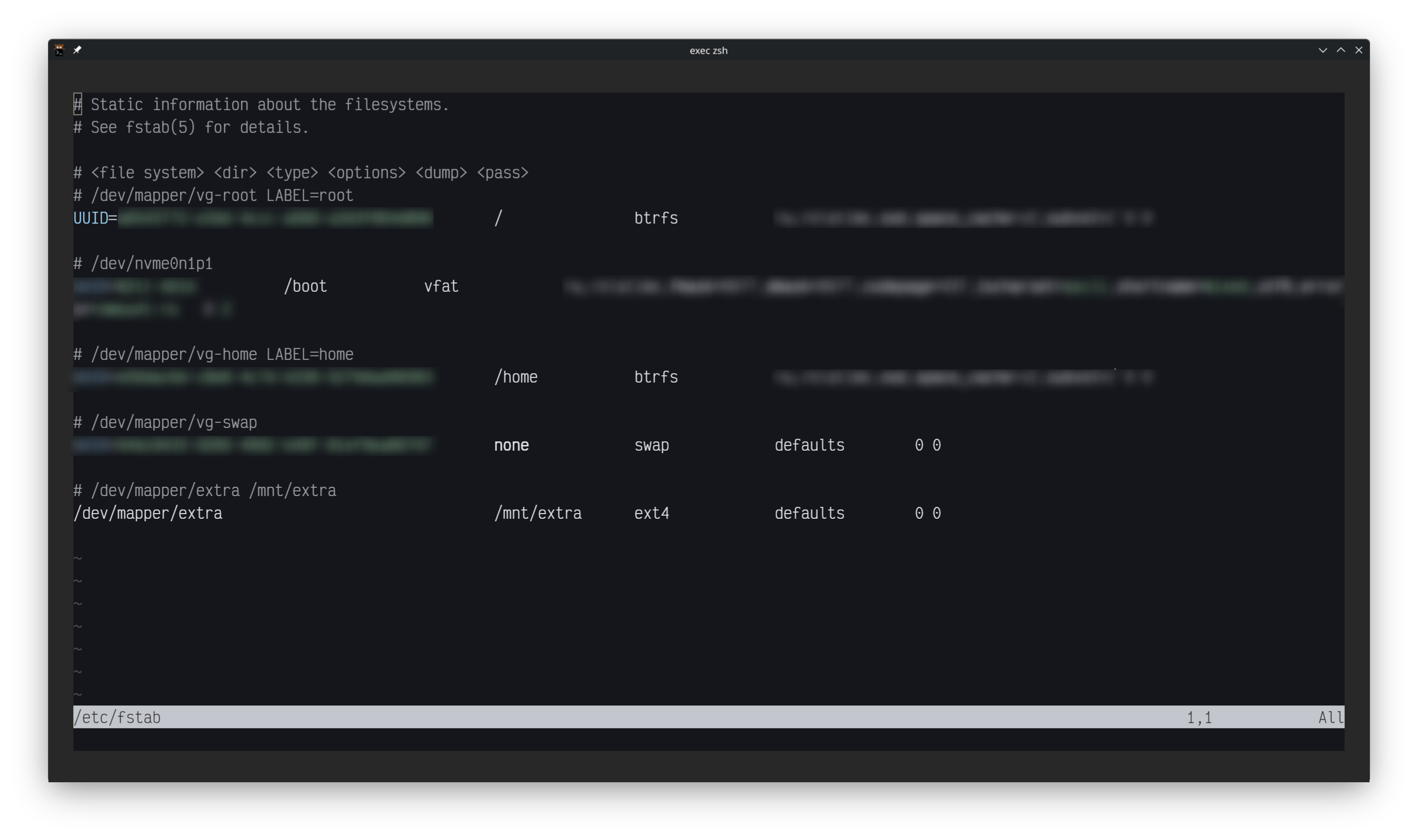
- You can now, reboot and if the drive is detected, you should be asked to enter the drive encryption password
Encryption Key and crypttab
- Navigate to
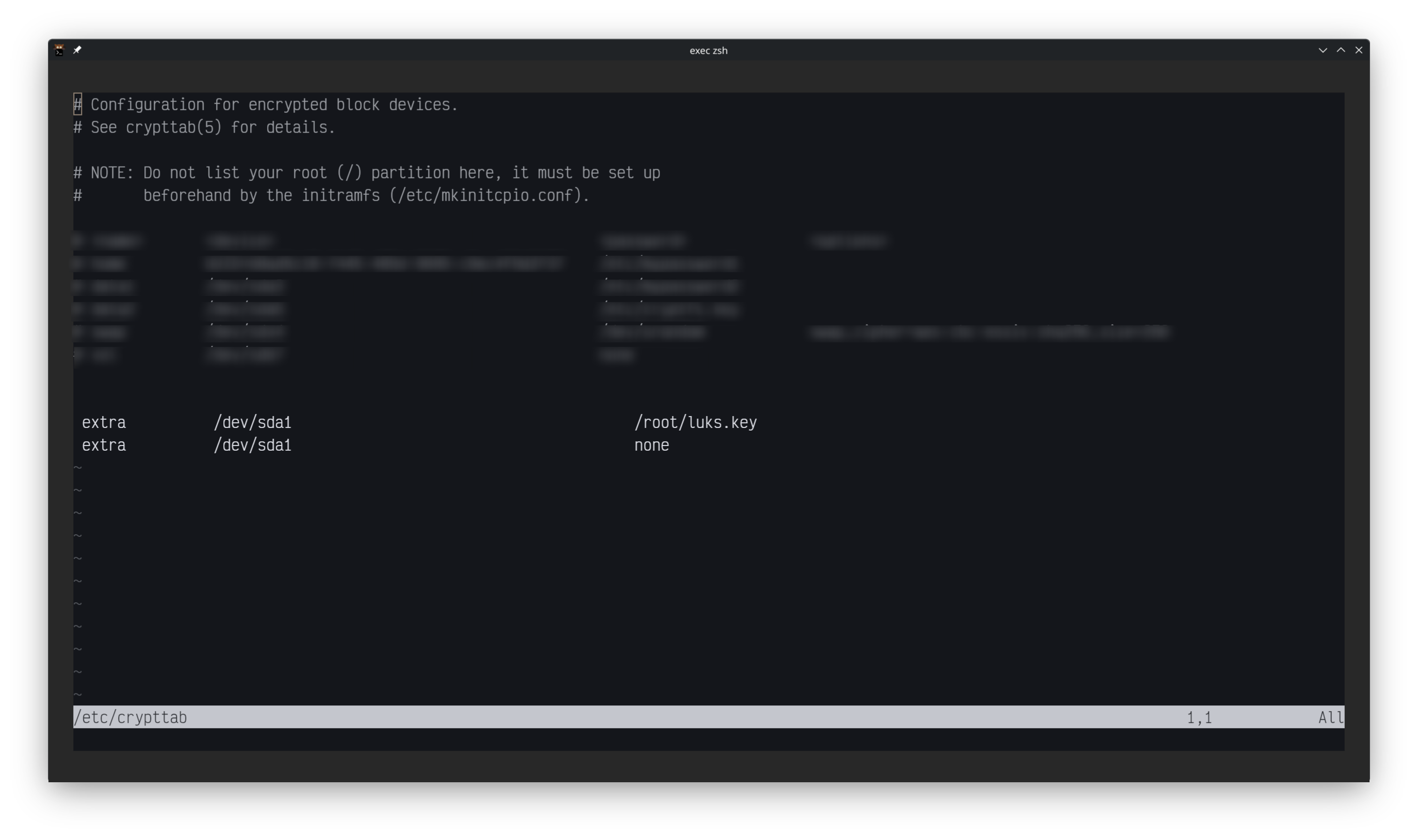
sudo nvim /etc/crypttab - There will be 2 entries that will need to be added to at the bottom of this file
- First,
extra /dev/<drive> /root/luks.key- extra = the name of the drive mount point folder
- /dev/drive = drive label location
- /root/luks.key = encryption key location
- Second,
extra /dev/<drive> /none- extra = the name of the drive mount point folder
- /dev/drive = drive label location
- none = tell linux to ask for the drive encryption password on boot
- First,
- After both options have been added, see image below proceed to creating a encryption key
- Generate LUKS key using OpenSSL
openssl rand -out /path/to/your/keyfile 4096
- Change permission to
readonly byrootsudo chmod 0400 /path/to/your/keyfilesudo chown root:root /path/to/your/keyfile
- Add the created key to your LUKS drive
cryptsetup luksAddKey /dev/DEVICE /path/to/your/keyfile- You will be prompted to enter the encrypted drive passphrase
- Reboot, if all went well. Your drive should be open at boot
- Lastly, make sure that your
useris able torwto the drivesudo chown -R user: location_of_drive_mount_point- NOTE: make sure you run the command on step 8 after rebooting your machine!!!